Make one thing useful.
Write Python or Node, or begin with a template. Name the tool, describe its purpose and declare the packages it needs.
Your logic, not a new framework.A small workspace. A useful connection.
Turn your Python and Node scripts into tools for your AI.
Bring the logic you already know. Give it a name, test the saved code, then let a compatible MCP client discover it—all from one self-hosted workspace.
Trusted LAN only. Not an internet-facing service. Know the boundaries
# A small script. A clear contract.
import json, sys

orders = json.load(sys.stdin)
print(json.dumps({
  "total": sum(orders["amounts"])
})){"total": 42}Illustrative script and output
tools/listFrom an idea to a callable tool
Creation, saving and execution are separate actions. You see what runs before you put it in an assistant’s hands.
Write Python or Node, or begin with a template. Name the tool, describe its purpose and declare the packages it needs.
Your logic, not a new framework.Save first, then run with JSON inputs. Inspect stdout, stderr, exit status and timing. Retained results are labelled when the code or inputs change.
A test runs the saved tool—not a draft.Enable the tool and refresh tools/list in a compatible client. Calls pass a JSON object on stdin and return the script’s printed output.
/mcp.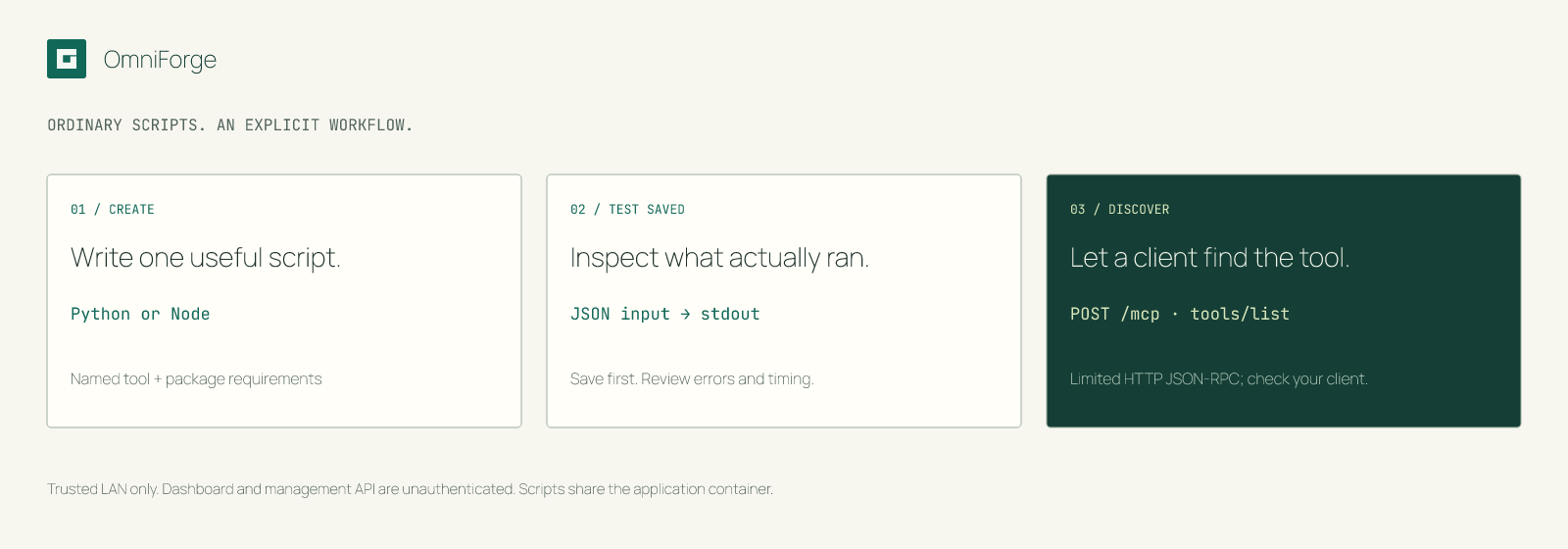
Inside the workspace
A library when you need to find something. A studio when you need to focus. Connection details when you are ready.
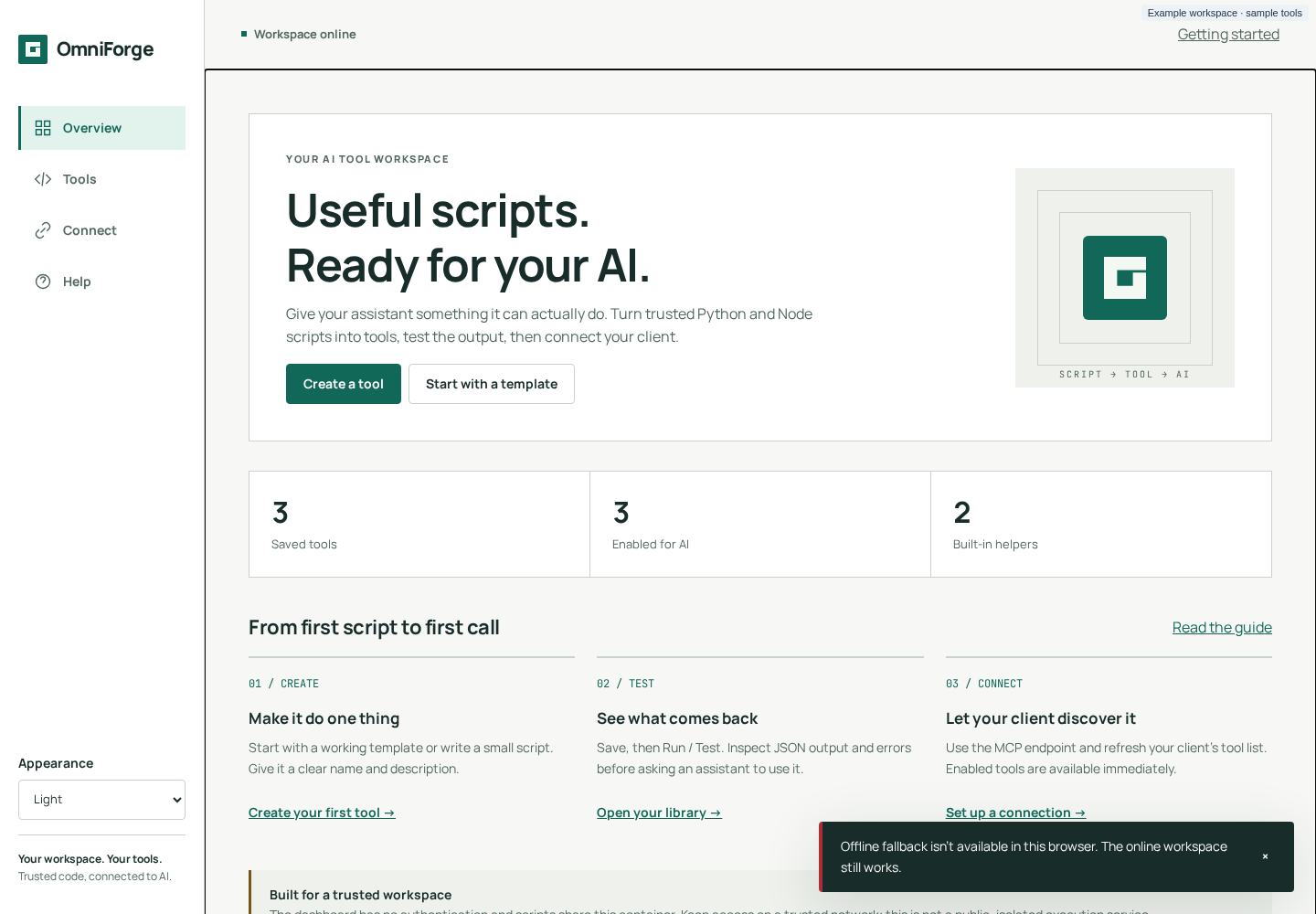
Python and Node with JSON on stdin. Per-tool pip and npm requirements install on first use and remain cached for later calls.
Explicit save and test controls, visible errors and previous-version labels help distinguish a current result from an earlier run.
Search by name or description. Filter by runtime or enabled state. Choose which saved tools appear in discovery.
Light, dark and system themes, a phone layout and PWA support on HTTPS or localhost. Saving and execution still require the server online.
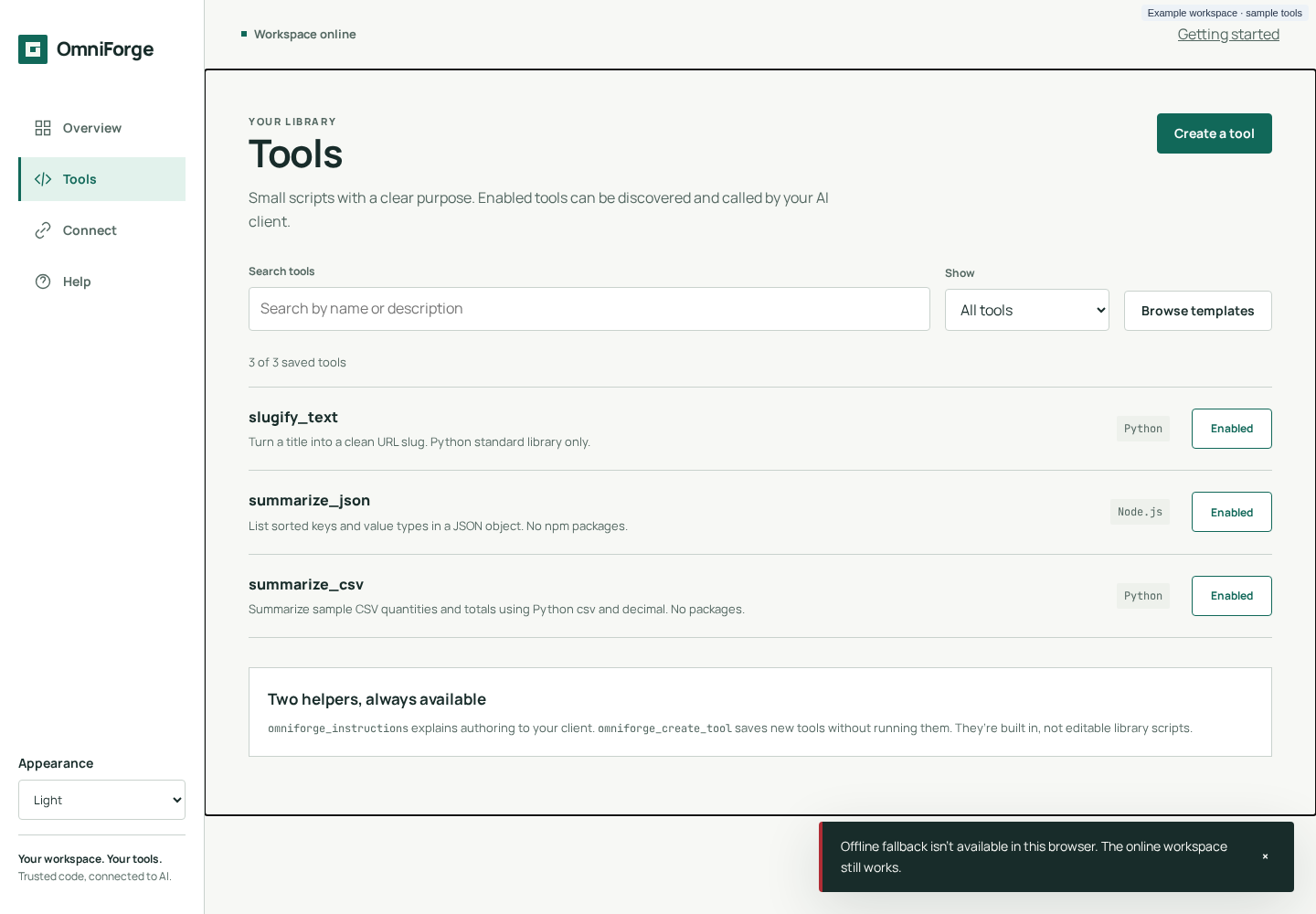
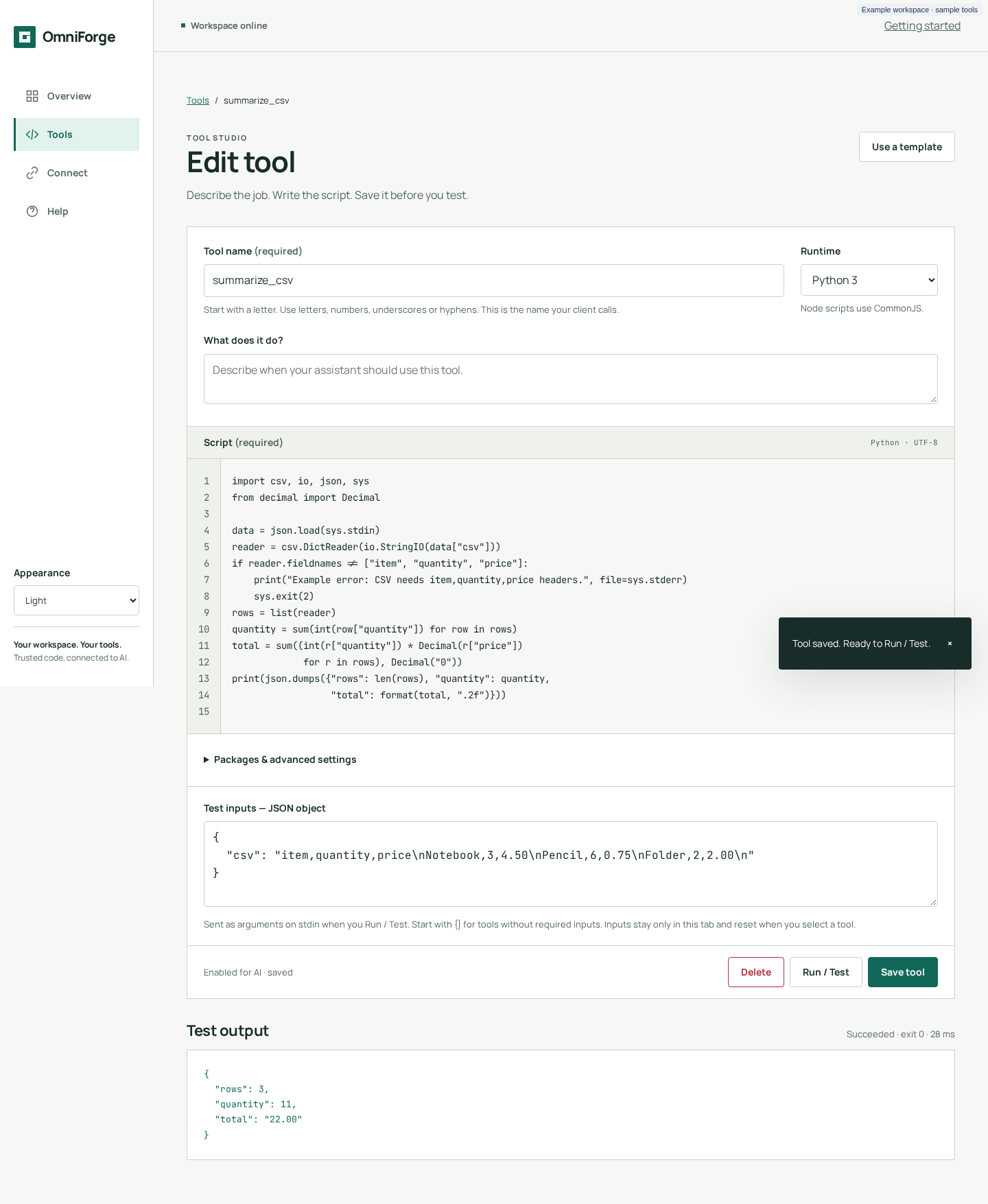
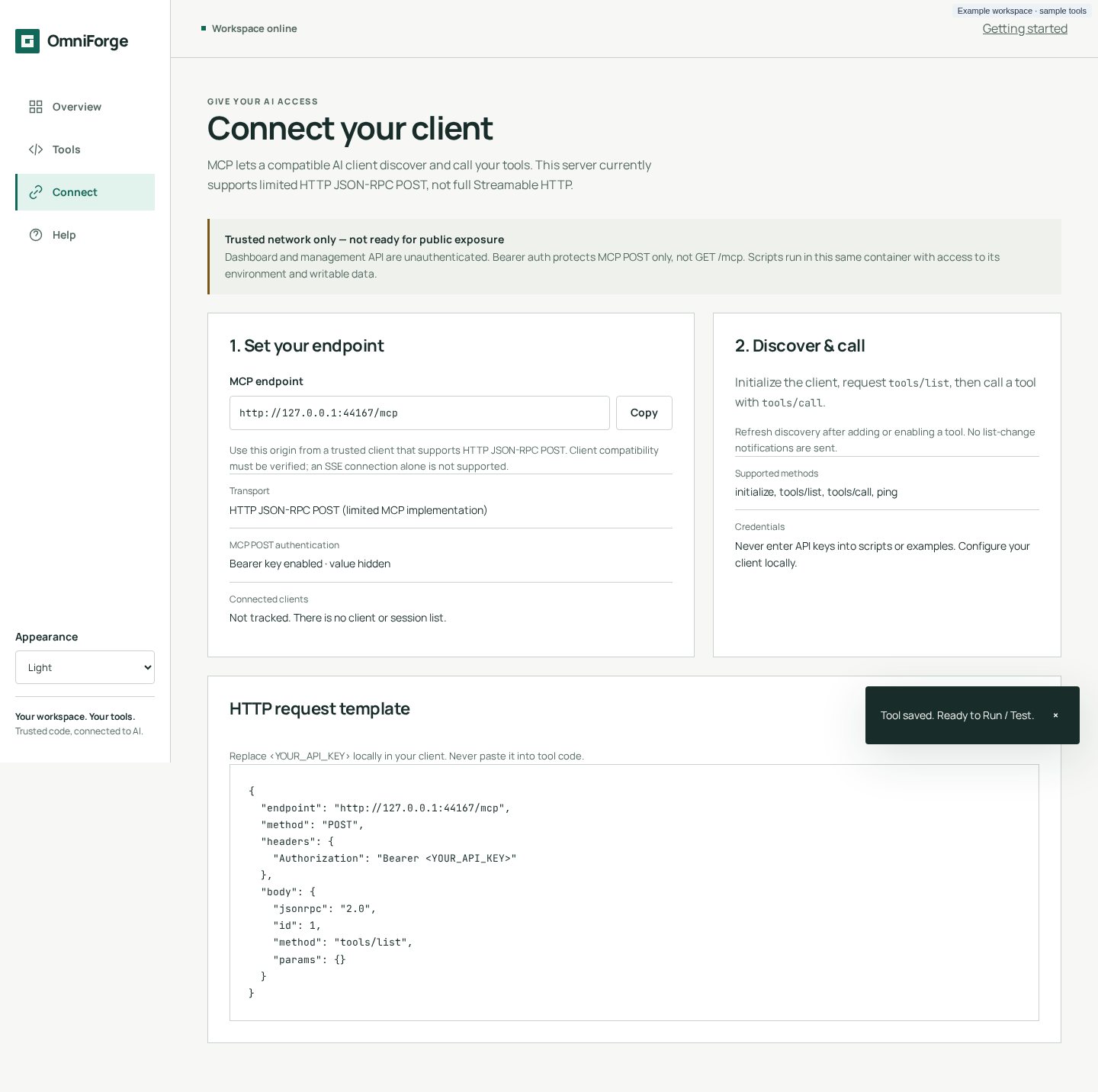
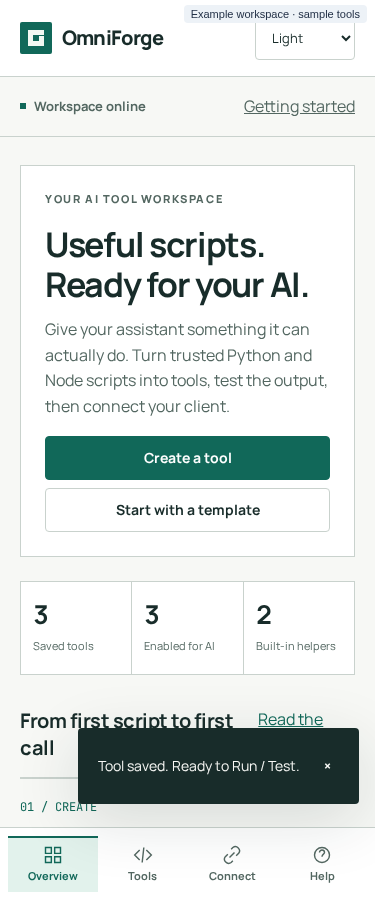
Same workspace. Smaller screen.
The interface adapts to a phone without turning into a different product. Labelled navigation, readable controls and the same saved-tool workflow.
Screenshots use local demo data, not a live service. The app supports light and dark themes; captures here show the documented workspace.
PWA and theme notesA clear connection contract
Local or cloud model choice belongs to your MCP client. It does not imply a cloud service can reach—or safely expose—OmniForge.
POST /mcp accepts one JSON-RPC request at a time for initialize, tools/list, tools/call and ping.
This is limited HTTP JSON-RPC, not full Streamable HTTP. There is no OAuth, session tracking or working SSE channel. Third-party client compatibility has not been live-verified; a client must accept this limited transport.
Read the exact protocol supportDISCOVERY REQUEST / ILLUSTRATIVE
{
  "jsonrpc": "2.0",
  "id": 1,
  "method": "tools/list",
  "params": {}
}
Refresh discovery after enabling a tool. Do not assume automatic client compatibility.
Before you run it
For trusted people running trusted code. Not a hosted multi-user service, not a sandbox and not safe for public exposure.
The dashboard and management API are unauthenticated. Anyone who can reach them can read, edit and run tools. Bind locally or restrict access to a trusted LAN. Do not port-forward or expose a public reverse proxy.
Set OMNIFORGE_API_KEY to require a Bearer key on POST /mcp. That key does not protect the dashboard, management API or GET /mcp. No OAuth is provided.
Scripts inherit the app’s environment, including its MCP key, and can access its writable data and network. Only run trusted scripts and packages. Do not place unrelated secrets in the environment.
Runs and dependency installs block the single worker. Output is not capped, per-script memory limits are not enforced and timeouts do not kill descendant processes. There are no CSRF, Origin or Host checks.
Container hardening is not per-script isolation. PWA installation requires HTTPS or localhost; its offline screen cannot execute or save tools. Public-safe hosting and security gaps are not solved by this page.
Start on your machine
Use Docker on an amd64 host. Keep the published port bound to localhost, and require a key for MCP POST requests.
Start with the image on Docker Hub. Review the constraints above before starting the container.
docker pull dbzocchi/omniforge:latestUse a digest when you need a reproducible image. This page previews the documented workspace; a pulled image may differ.
Image and tags on Docker HubThe shell check below requires your key to be set first. It does not add authentication to the dashboard.
# Set OMNIFORGE_API_KEY to a strong random value first.
: "${OMNIFORGE_API_KEY:?Set a strong random key first}"
export OMNIFORGE_API_KEY
docker run -d --name omniforge \
  -p 127.0.0.1:8000:8000 \
  -e OMNIFORGE_API_KEY \
  -v omniforge_data:/opt/omniforge/data \
  -v omniforge_lib:/opt/omniforge/lib \
  --restart unless-stopped \
  dbzocchi/omniforge:latest
Open http://localhost:8000. Create a tool, save it, then choose Run / Test.
The local bind above intentionally prevents other machines connecting. Review network restrictions, container permissions and resource limits before changing it.
Installation guideGo a little deeper
Practical guides for installing, writing and testing trusted tools.